Case context
Case context holds what your client tells you and what you want Mona to know: questionnaires, recorded interviews, and your own notes. Each one is a source. Mona reads a source only after you confirm it.
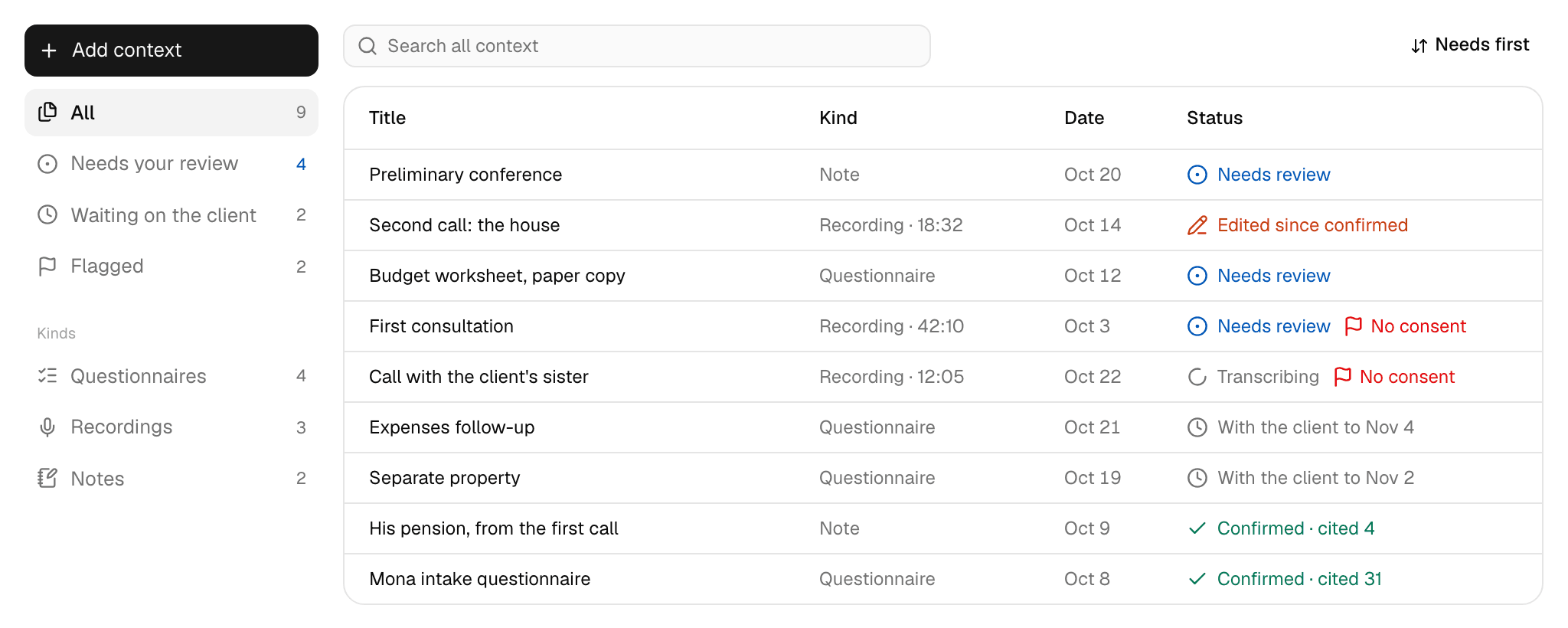
The list shows every source with its kind, date, and status. The views beside it narrow the list to Needs your review, Waiting on the client, or one kind of source.
Add a source
Click Add context and pick what you're adding.
Questionnaires
Every firm has the Mona intake questionnaire, which covers the financial and family facts of a divorce matter. Pick a questionnaire to see what it asks and choose how the client answers it:
- Fill it in yourself: type the client's answers as you go through it together, then click Save answers. Blank answers are left out.
- Upload a filled one: upload a PDF up to 24 MB, or a photo or scan of a handwritten form up to 7 MB. Mona maps each answer onto its question. For a blank copy to print, click Download PDF. Every page prints its version, so Mona reads an older copy against the version it was printed from.
- Send to the client: click Create link, then send the link to your client yourself.
Your client opens the link without signing up, answers, and submits once. Answers aren't saved until they submit, so ask them to finish in one sitting. The link works for 14 days and doesn't show the answers again after they submit.
While you wait, the source sits under Waiting on the client and shows when the link was sent and opened. Open it to copy the link again. Once a link has expired, click Get a new link.
To use your firm's own form, pick New questionnaire. Name it, have Mona read the questions from a blank form you already use (a PDF up to 24 MB, or a photo or scan up to 7 MB) or start blank, edit the questions, and review it as your client will see it. Every case in your firm can then use it. To change it later, open it and click Edit, which saves a new version. Answers already given stay with the version they answered. The Mona intake questionnaire can't be edited.
Recordings
Mona transcribes each recording and writes a summary of it. There are two ways to add one:
- Record now: record in your browser with your microphone. Under Who is present, name everyone in the room and their role, check the box confirming that everyone knows the meeting is recorded and consents, and click Start recording. Mona logs who was present and that they consented, with the time. A live transcript shows you it's working, and it isn't stored. When you're done, click Finish, and Mona transcribes the saved audio.
- Upload a recording: add an audio or video file of an earlier interview, up to 2 GB. An uploaded file has no consent on record, so it shows No consent until you open it, click Confirm consent, and name who was present.
Name everyone in the room, since a third person can affect privilege. Mona sees who was there.
Keep the page open until you click Finish. If the page closes or your browser crashes first, the audio uploaded so far is saved, and you lose only the last few seconds. For about two minutes the recording shows Recording, in case it's still running in another tab. Then it shows Not finished: open it and click Transcribe saved audio.
A transcribed recording opens on two tabs. Summary holds Mona's summary, any safety or consent Flags, and the Facts it took, set out under the Mona intake questionnaire's questions. Each flag and fact has timestamps that open the Transcript at the line it rests on. If processing fails, click Try again.
Notes
Pick Write a note for anything you want Mona to know in your own words, then click Save note. Leave a blank line between paragraphs, since Mona cites a note one paragraph at a time. A note needs confirming like any other source.
Confirm a source
Each source opens on its own page once it's saved. Read it, correct anything that's wrong, and click Confirm. Mona can then read and cite it.
Click Reject if a source shouldn't reach Mona. You can reject a source until you've confirmed it once, and you can confirm a rejected source if that was a mistake.
| Status | What it means |
|---|---|
| Waiting for the client | The link is out, and your client hasn't submitted. |
| Reading | Mona is reading the answers. A recording shows Transcribing. |
| Needs review | It's ready for you. Mona doesn't read it until you confirm it. |
| Confirmed | Mona reads this version. |
| Edited since confirmed | Mona keeps reading the version you confirmed until you confirm your edit. |
| Rejected | Mona doesn't read it. |
| Couldn't be read | Mona failed to read it. Try a recording again, or add anything else again. |
| Recording | It's still running in another tab or on another device. |
| Not finished | It stopped before Finish. Open it to transcribe its audio. |
Correct a source
Click Edit answers or Edit note. In a recording, open Transcript and select a line.
Saving an edit creates a new version, and Mona keeps reading the one you confirmed until you click Confirm again. Once you do, Mona's citations of what you changed are out of date, and citations of everything else still stand. A note's citations follow paragraph numbers, so a paragraph inserted above another also counts as changing it.
The three-dot menu on a source's page has two more actions:
- Rename changes the name you and Mona see. It needs no confirming and doesn't affect citations. Leave it blank to go back to the original name.
- Delete permanently deletes the source and what came with it: a questionnaire's answers, link, and uploaded form; a recording's audio, transcript, and consent log; every version of a note. A source Mona has read stays with the case, so correct it with an edit. You also can't delete a source while Mona is reading it.
What stays with you
- Reaching your client: Mona has no way to contact your client. You send the questionnaire link yourself.
- Consent: Mona logs the consent you record and flags concerns it finds in the transcript. Getting consent, and deciding what a concern means, is your call.
- The case's facts: Case context stays in your client's words. Confirming a source doesn't change the case's details on the Caseboard, and a figure Mona takes from what your client told you is labeled Client-stated. See Evidence and citations.