Documents
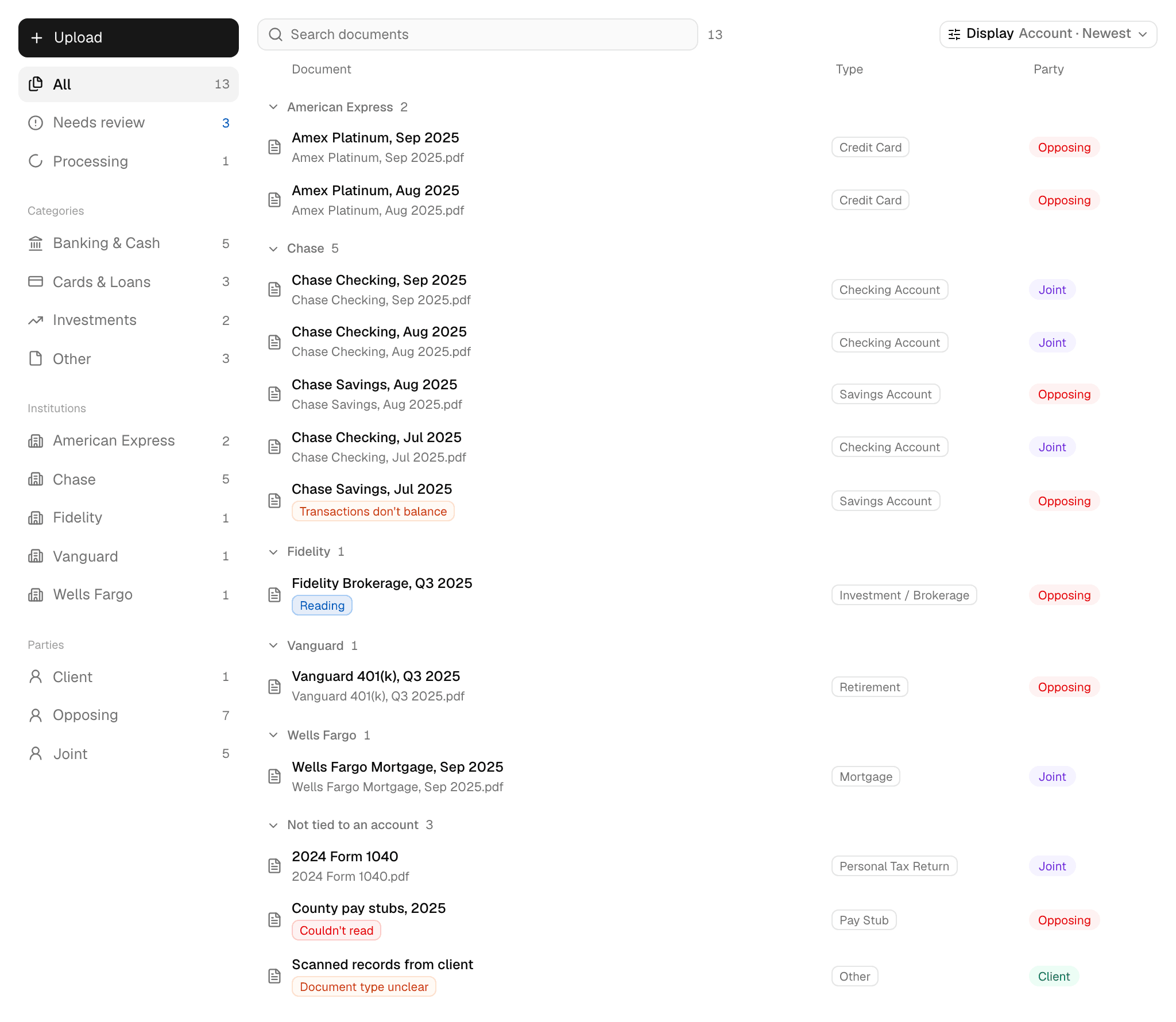
Documents is the case file. You upload PDFs, and Mona reads each one, sorts it, matches it to a party, and raises what needs you.
Upload
Click Upload, or drop PDFs anywhere on the page. Files must be PDFs of up to 50 MB each, and you can add several at once. You can keep working while Mona reads them.
If a file is an exact copy of one already in the case, Mona turns it away and tells you which document it matches.
To add a statement of net worth, use Statements, which asks whose it is. A statement uploaded here still reaches Statements, since Mona recognizes it from its contents.
What Mona does with each PDF
- Matches it to a party: Mona looks for the parties' names on the first pages and marks the document Client, Opposing, Joint, or Unassigned.
- Checks what the PDF holds: when one PDF holds several documents, Mona asks you to review the split.
- Identifies the document: Mona works out its type and files it under a category, such as Banking & Cash, Tax & Income, or Property. There are no folders to set up.
- Reads it: Mona takes the dates, account, and period. From a statement, it also takes the balances and transactions, and it checks that they add up.
This takes a few minutes, longer for a large upload. While it runs, the document shows Reading and sits under Processing. What Mona reads feeds Accounts, Timeline, Missing accounts, and Cash flow.
Find a document
The views beside the list show All, Needs review, Processing, and each category, institution, and party. The search box searches the current view.
Display sets how the list shows, and your browser remembers your choices:
- Group by: Account, Original upload, Category, Document type, Institution, or Party.
- Order: Newest period first, Oldest period first, Recently added, or Name, A to Z.
- Names: Mona's labels or File names.
Open a document
Click a row to preview the document beside the list, with any alerts above its pages and its details below. The left and right arrow keys move to the next document, and Escape closes the preview.
To open the document's own page, click Open, double-click the row, or press Enter. The page sets the document's pages beside its alerts and details: type, account, period, party, pages, upload date, and file name. A bank or card statement's page also steps through the other statements of the same account. A citation from Mona opens here, at the page it cites.
Right-click a row for Open, Preview, Rename, Reassign party, and Delete, plus Open original upload for a part split from a bundle and Retry processing for a document Mona couldn't read.
Needs review
Needs review lists every document with something for you to settle, grouped by problem, most urgent first. A document with two problems appears in both groups. Where a group's header has a button, it works through the group. You can also open any document and act on its alert.
| Problem | What it means | What you do |
|---|---|---|
| Couldn't read | Processing failed. | Click Retry processing, or Retry all for the group. |
| Bundle to split | The PDF holds several documents, or Mona isn't sure what it holds. | Click Review split. See Split a bundle. |
| Statement to confirm | Mona found a statement of net worth and is waiting for you before it reads it. | Click Confirm details. See Statements. |
| Transactions don't balance | The statement's opening balance and transactions don't reach its closing balance. | Click Review reading, or Start review for the group, then accept or correct it. |
| Needs an account | Mona couldn't tell which account the statement belongs to, so it's holding the statement. | Click Review statement, then choose the account or tell Mona what it is. |
| Document type unclear | Mona read the document but has no standard type for it. Its reading isn't held up. | Click Review type, or Review types for the group. Keep it as is or choose a type. |
| Transactions unchecked | Mona has no record of checking that the statement's transactions add up. | Click Run verification. |
| Duplicate | The document looks like another copy of one already in the case. | See Duplicates. |
Couldn't read, Bundle to split, and Statement to confirm stop Mona reading that document until you act.
Split a bundle
One PDF can hold several documents, such as a tax return, W-2s, and a retainer. Mona keeps going on its own when it's confident a PDF is one document. Otherwise, it proposes where each document starts and what each one is, and waits for you.
Review split opens the Review Room, where you can adjust the proposal and then do one of two things:
- Apply split: each part becomes its own document, which Mona reads on its own. Each part takes the original's party.
- Keep as one document: you choose the document's type, and Mona reads it whole.
The original upload stays in the case. Group the list by Original upload to see each one with its parts.
Duplicates
Mona compares what it read. Two documents count as duplicates when they cover the same accounts over the same periods with matching balances, as with a re-scan of a statement already in the case. Mona only raises this, and the decision is yours:
- Compare documents opens the two side by side.
- Delete duplicate deletes this copy.
- Dismiss keeps both.
- Flag keeps it in Needs review for later.
Review duplicates on the group's header steps through them one at a time.
Parties
Mona matches documents using the party names in the case. If a name is misspelled, documents can stay Unassigned. Correct the name on the Caseboard, and Mona matches the case's documents again and shows its progress.
To set a party yourself, right-click the row and choose Reassign party. A later match won't change what you set. A statement of net worth takes its party from Confirm details, and a part split from a bundle takes its party from the original upload.
Delete a document
Right-click the row and choose Delete. This permanently removes the file and everything Mona read from it. It can't be undone, and there's no archive. An upload that was split has no Delete in its menu, and a statement of net worth stays with the case once Mona starts reading it.
What stays with you
- Getting the documents: Mona doesn't request anything from anyone. Timeline and Missing accounts show what's missing, Mona can draft the demand, and you send it.
- What's in the file: only you upload or delete documents, including duplicates Mona raises.
- Checking the evidence: reading tells you what a document says. Whether it supports a statement's figures is the work of Trace and the Statement agent.