Your first case
Set up the case once. Then every case runs on one loop:
- Add sources: case context, documents, and Statements of Net Worth.
- Mona processes them: it reads and sorts each one, and you confirm what it raises.
- Work the case with Mona: build iteratively toward the most defensible position that supports your client's goals.
- Get what's missing: ask your client, or have Mona draft a demand or subpoena for you to serve. What comes back is a new source.
When the position holds up, you take it to negotiation, motions, or trial. Mona can help draft documents for that too.
You don't need everything before you start. Create the case with what you have and add to it as material comes in.
Create the case
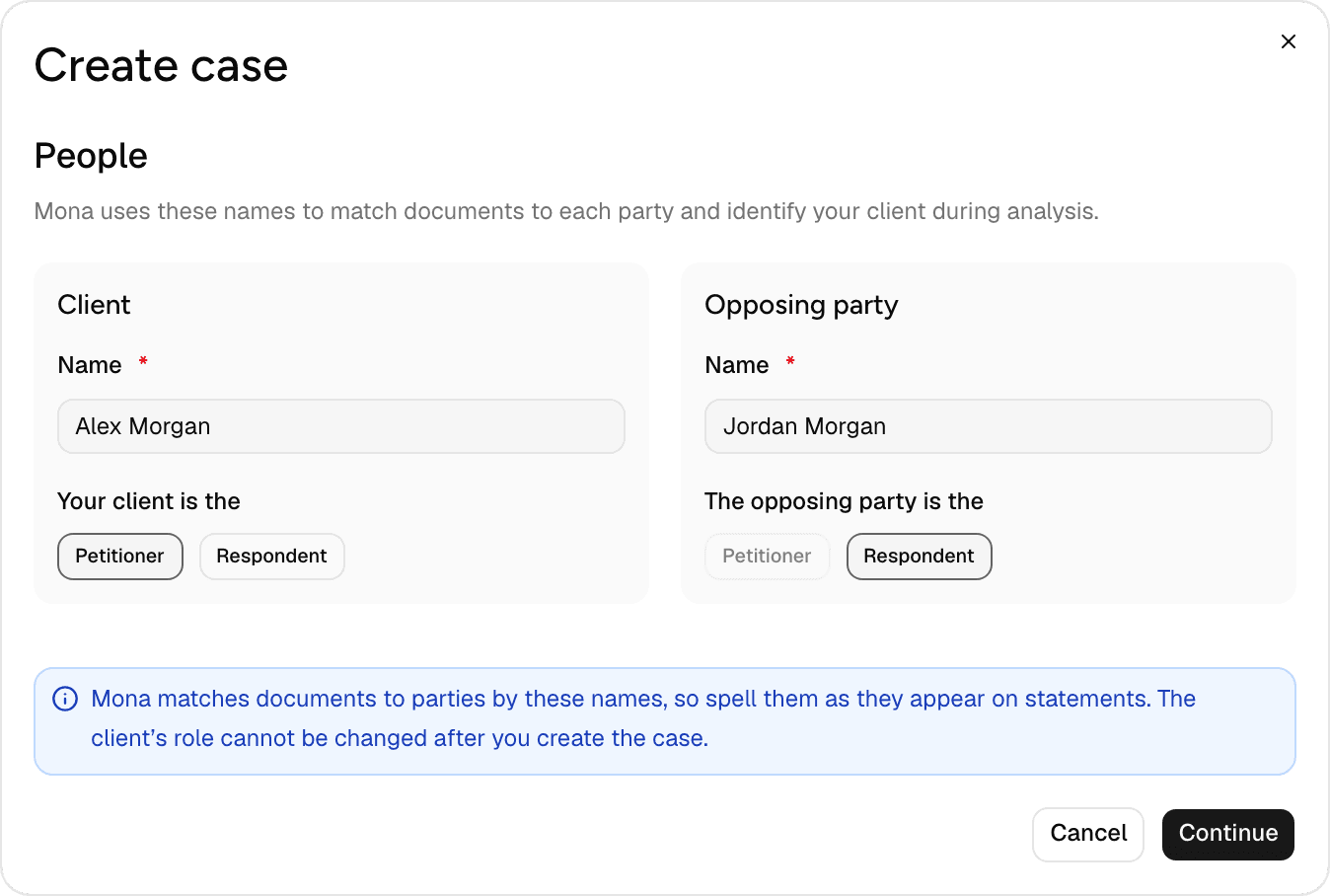
Click New case. Mona asks for:
- People: your client, the opposing party, and which one is the petitioner. Mona uses the names to match documents to each party.
- Jurisdiction: the state and county.
- Dates: marriage, separation, and commencement.
- Case name and number
Only the two names, the commencement date, and the case name are required. You can change any of this later on the Caseboard.
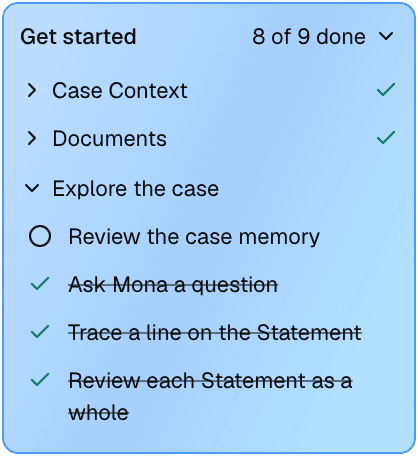
Your case opens on the Caseboard, with a Get started checklist in the sidebar that walks you through your first pass. It shows what's done, what's running, and what needs you. Click a step to open the page where you do it. A locked step tells you what it's waiting for when you hover over it.
1. Add sources
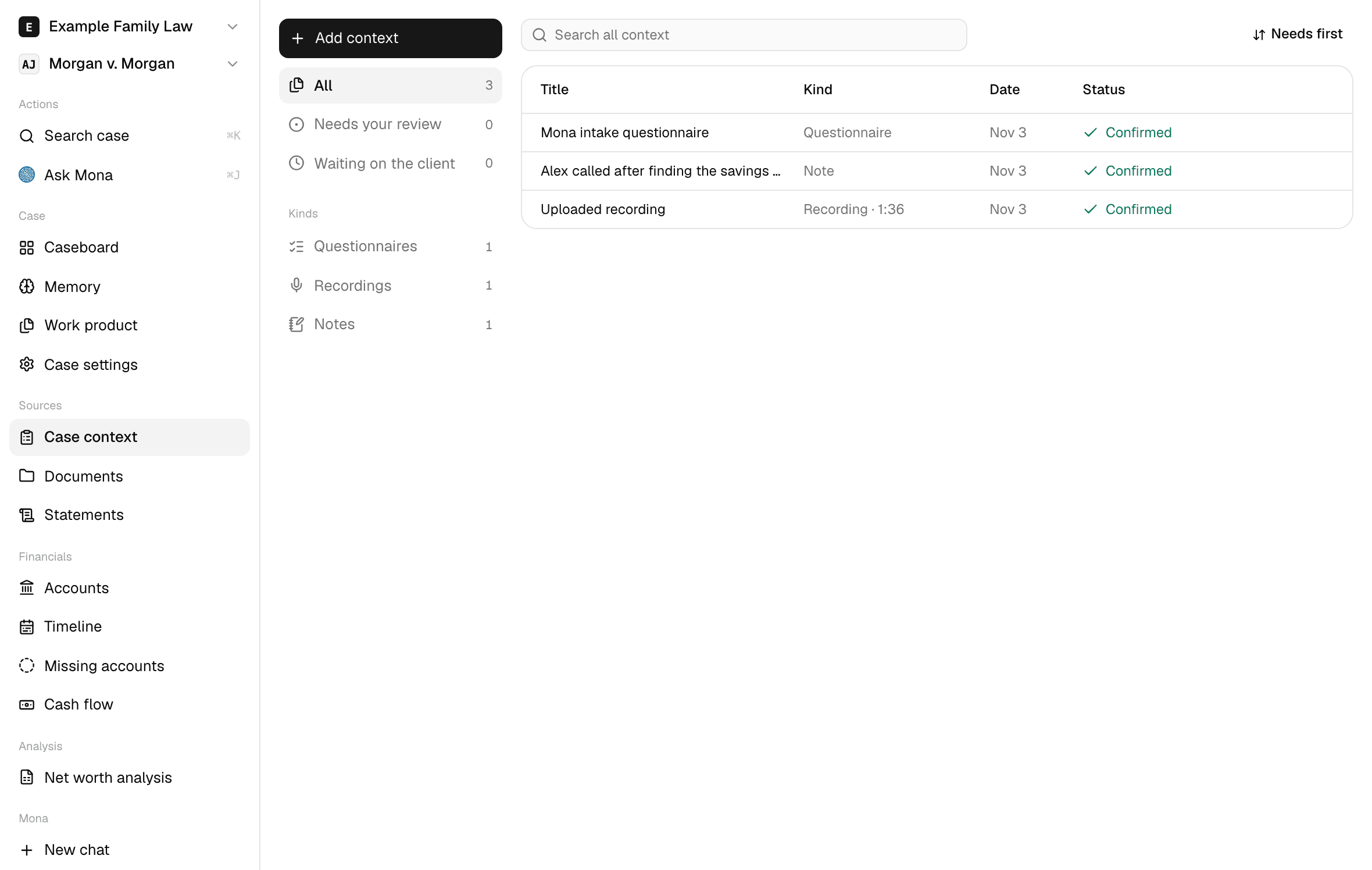
- Case context: open Case context and click Add context. You can start a questionnaire, record a conversation, upload a recording, or write a note.
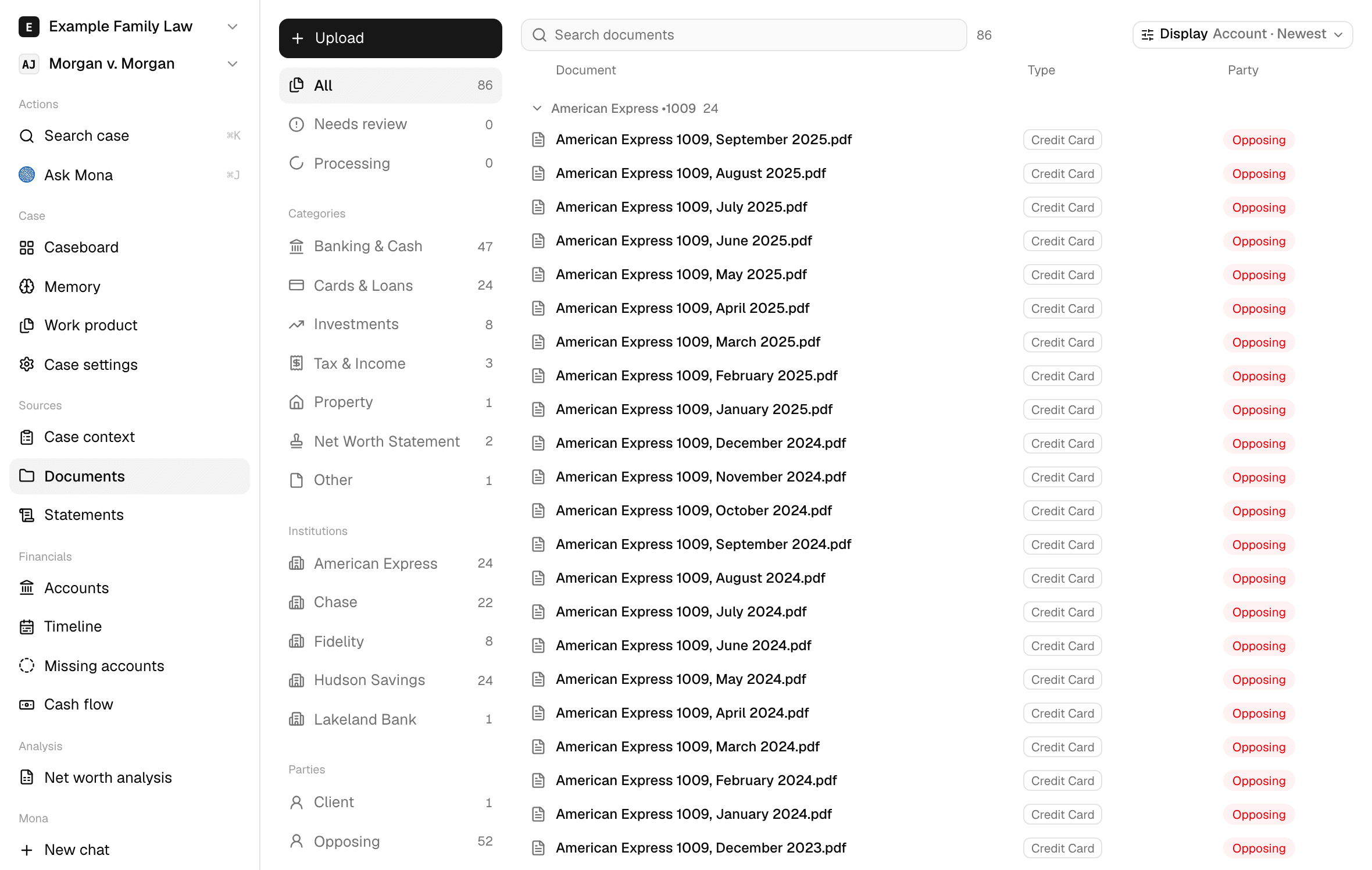
- Documents: open Documents and upload what you have: bank and card statements, tax returns, pay stubs, deeds.
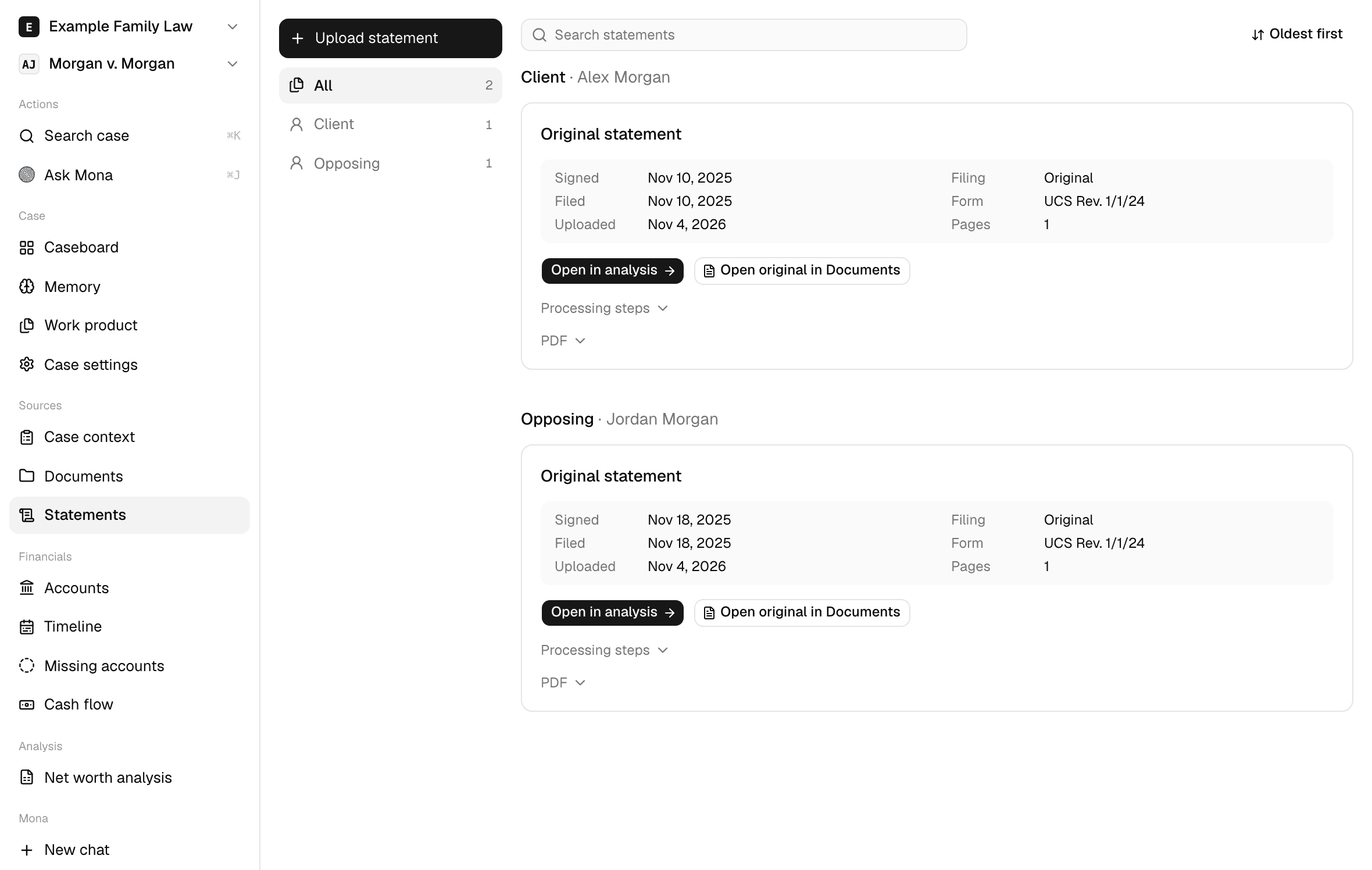
- Statements of Net Worth: open Statements, click Upload statement, and say whose it is. Start with your client's, and add the opposing party's once it's filed.
2. Mona processes them
You can keep working while this runs. Each source has a step that needs you:
- Case context: review each one and confirm it. Mona reads only what you've confirmed.
- Documents: Mona reads each PDF, sorts it, and matches it to a party. This takes a few minutes, longer for a large upload. Anything that needs you appears under Needs review.
- Statements of Net Worth: confirm the details, and Mona reads the statement line by line.
3. Work the case with Mona
Ask questions, dig into the financials, and find what's missing.
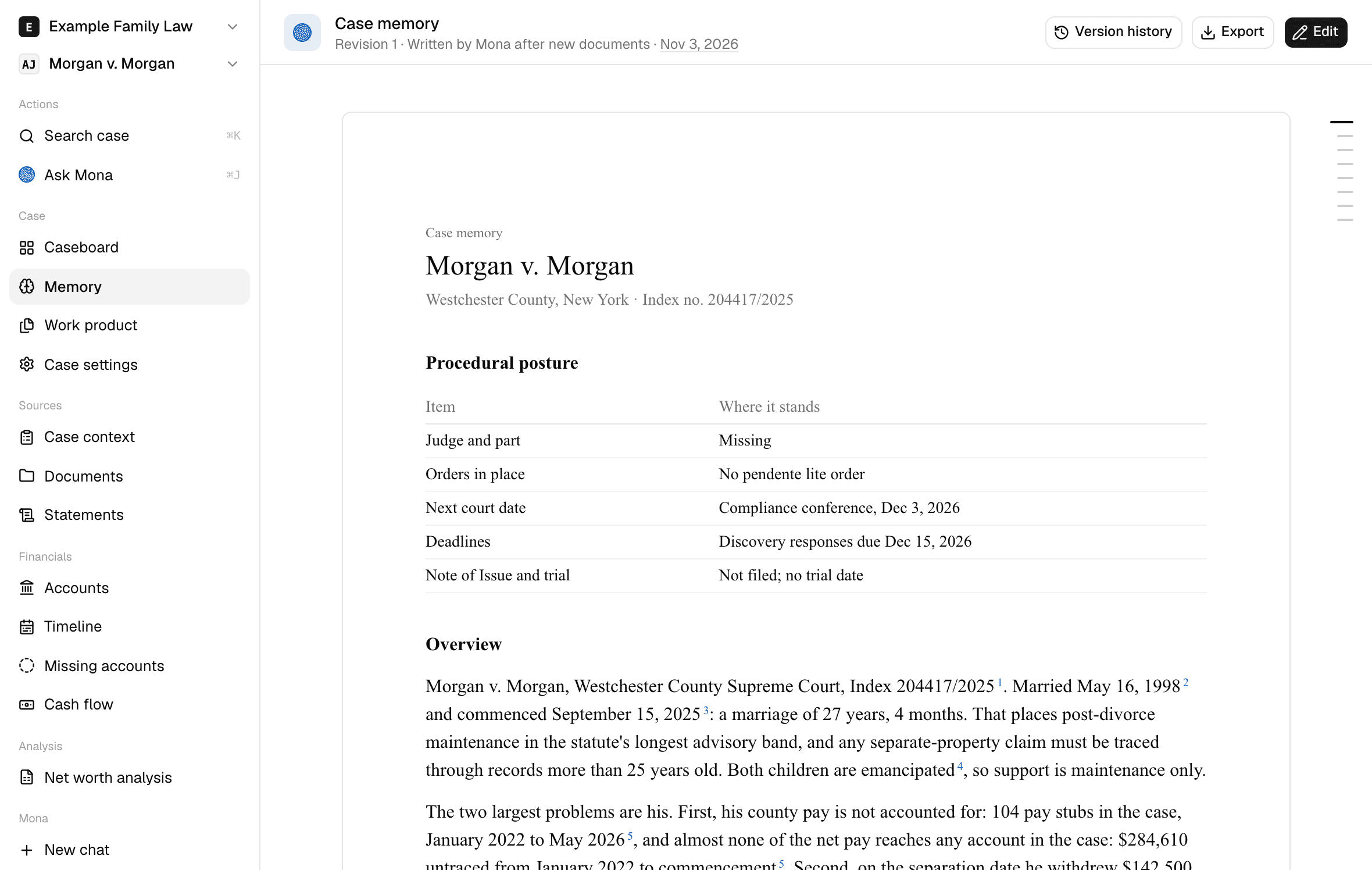
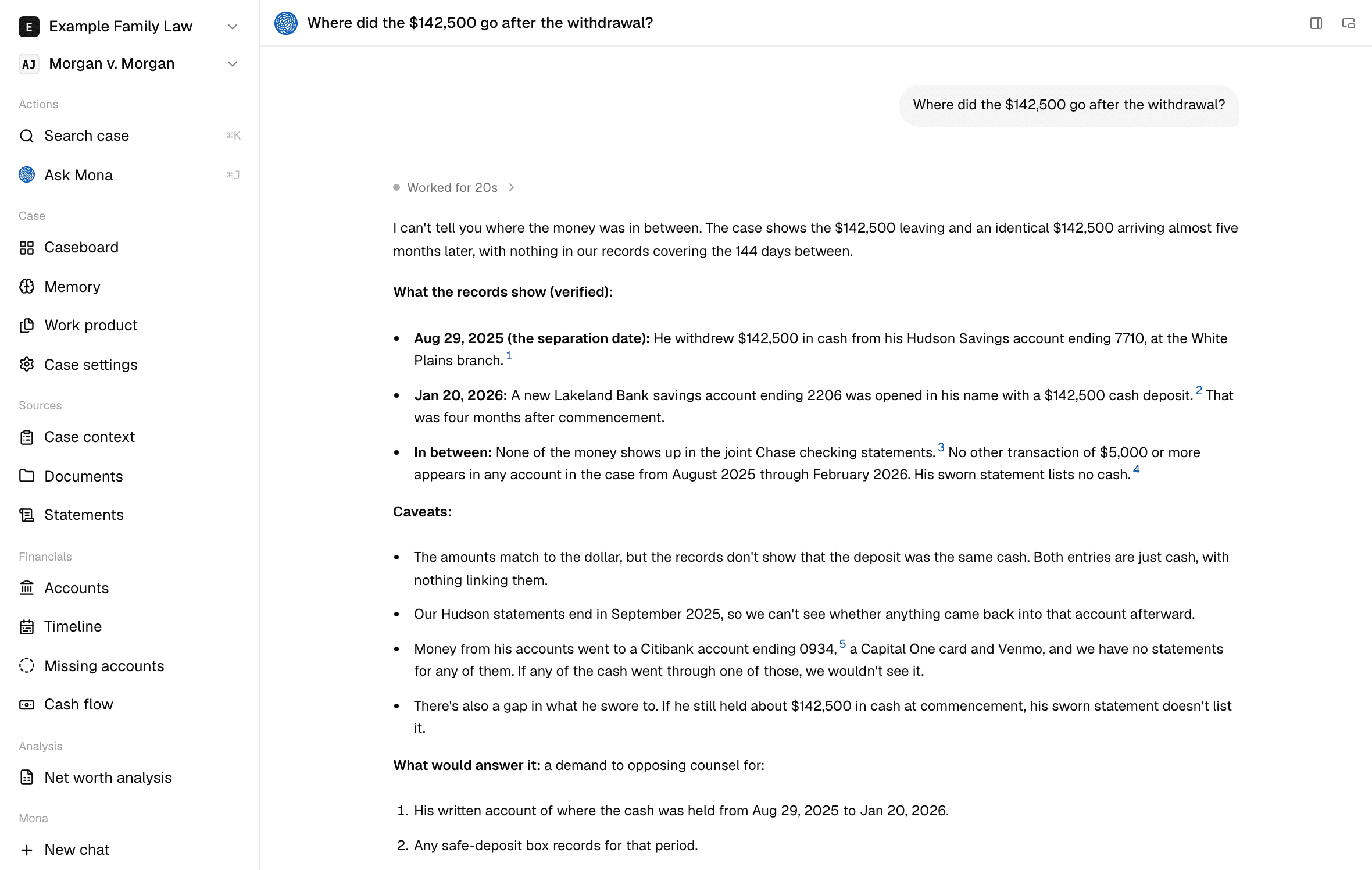
Click Ask Mona and ask, "Where does the case stand?" Mona writes the case memory: a memo of the case, with sources, that marks each figure as verified, declared, or client-stated and lists what you and Mona should do next. Keep asking from there. Click a citation to open the page it came from.
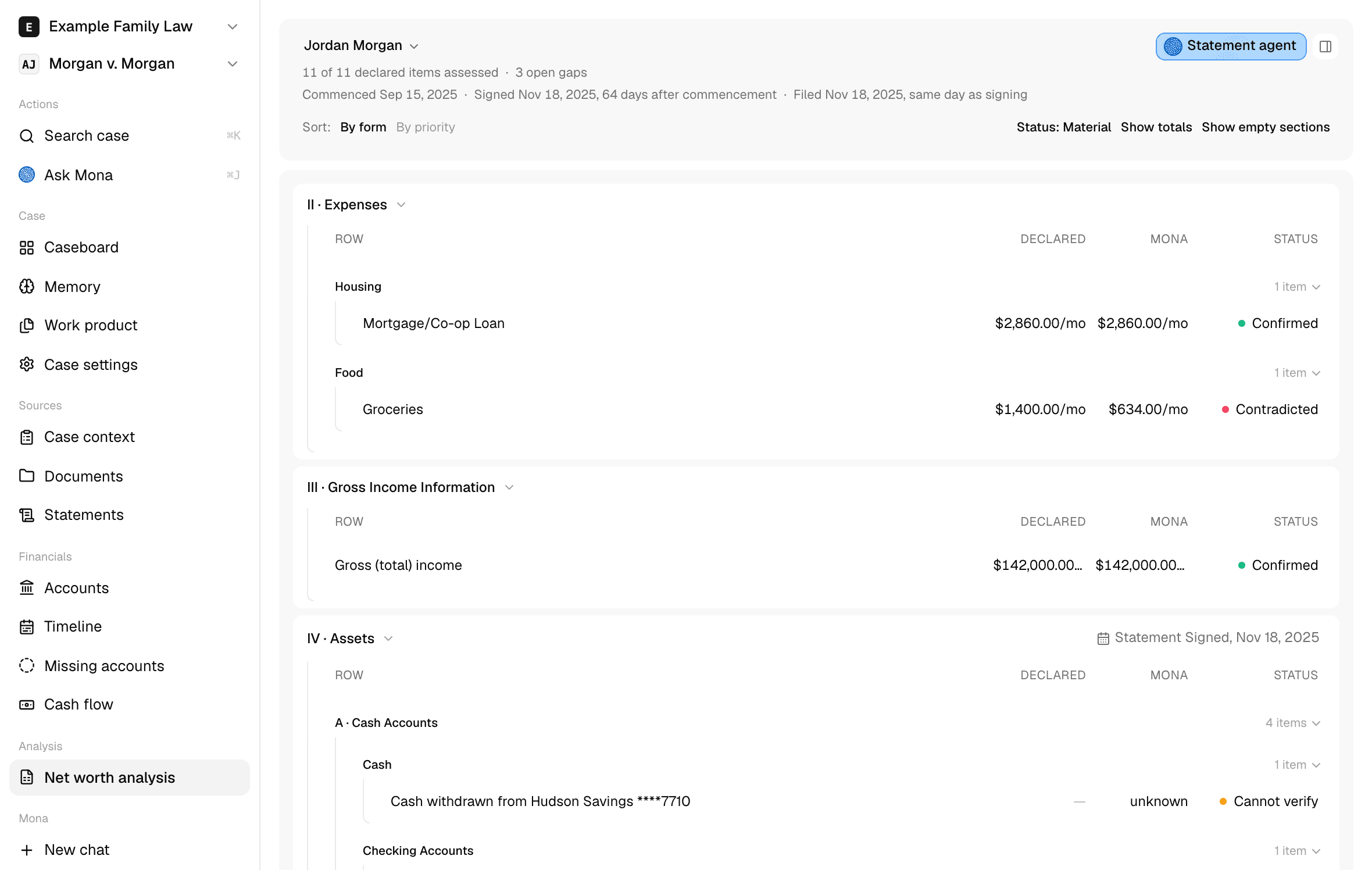
Once your client's statement is read, open Net worth analysis. Send Trace to check a line against the evidence, or the Statement agent to read the whole statement.
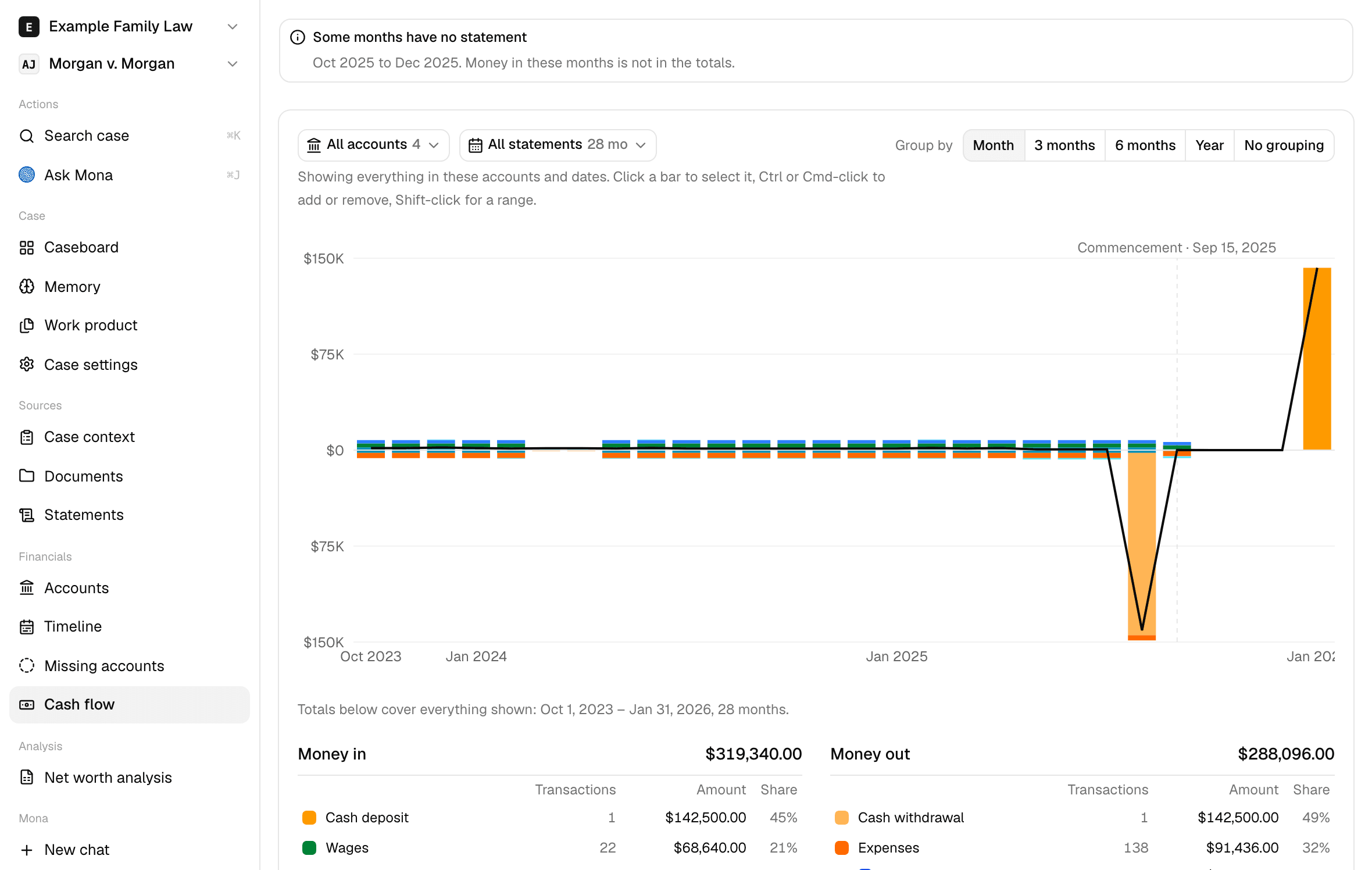
Accounts, Timeline, Missing accounts, and Cash flow show what the documents contain.
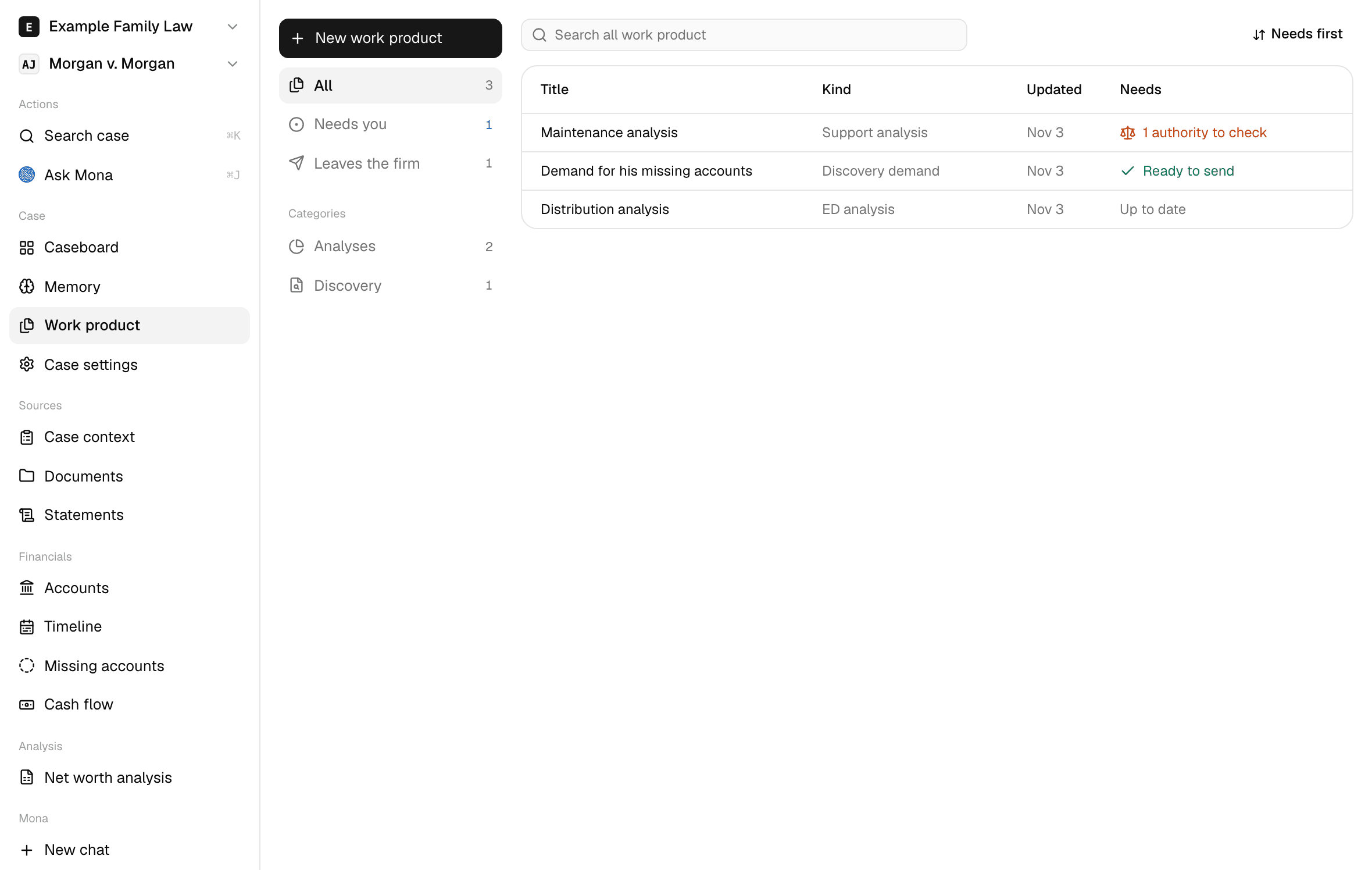
To test a position, open Work product, click New work product, and have Mona write an ED analysis, a support analysis, or a separate property proof. Each states your client's weak points as plainly as the other side's and ends with its open items: each missing document with the dollars it would move, and each call that is yours.
4. Get what's missing
Timeline shows which statements are missing for each account, and Missing accounts lists accounts the case's money reached with no statements in the case. Ask your client for what they can give you.
For the rest, click New work product and have Mona draft a discovery demand, interrogatories, or a subpoena. Clear its Checks panel, click Download PDF, and serve it yourself.
When a response arrives, add it as a source, and the loop starts again.
Keep the loop going
Come back to the Caseboard. It shows what needs you, where the case stands, and what happened recently.
The case memory updates only when asked, so click Update memory when you want Mona to bring it current.
Find your way around
Each page opens a short guide to what it shows and what you can do there, numbered on a picture of the page. Click Got it to close it until your next visit, or check Don't show again to stop it opening.
Help, at the bottom of the sidebar, reopens the page's guide and the welcome, and links to this documentation.